No products in the cart.

Sale
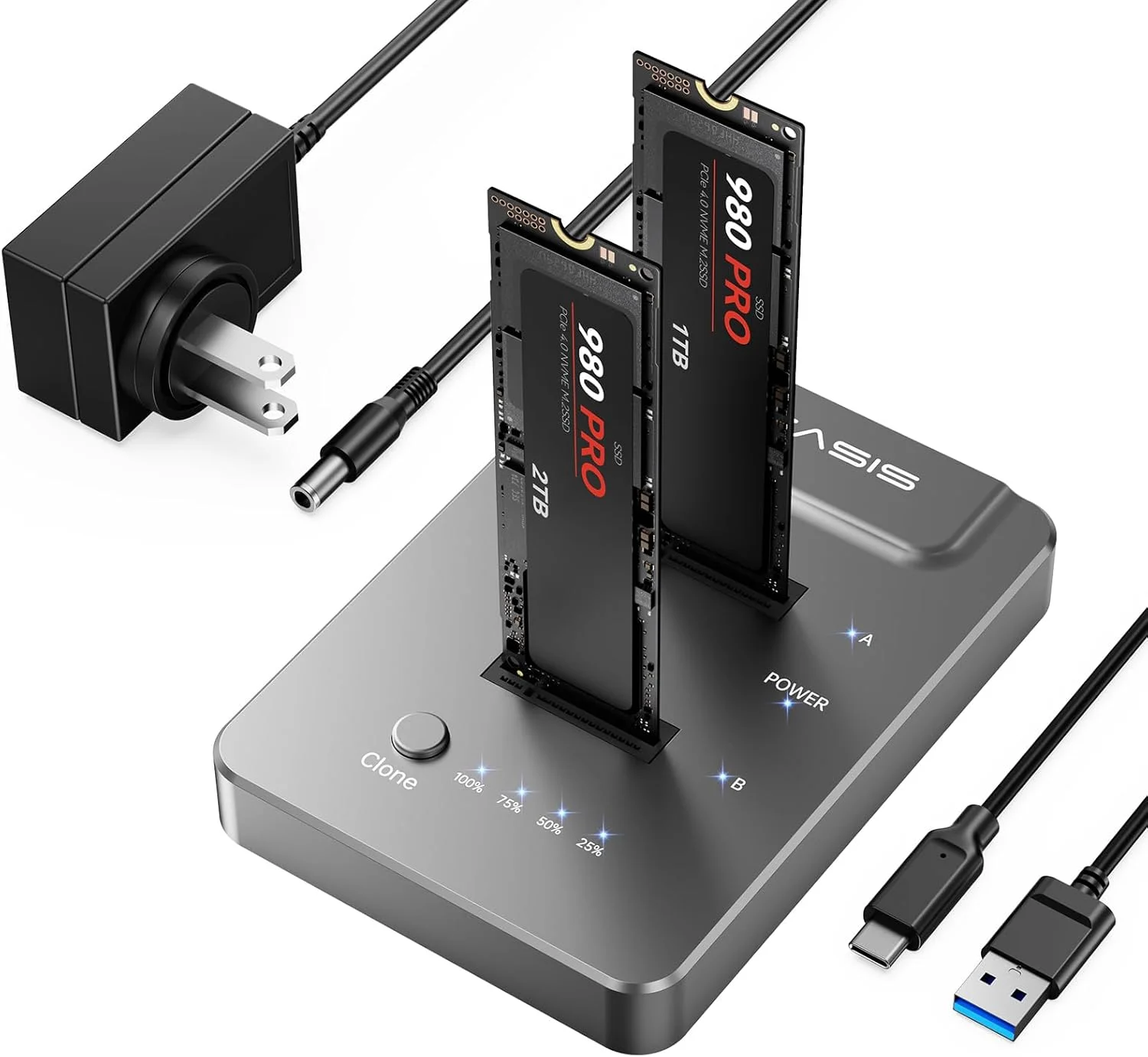
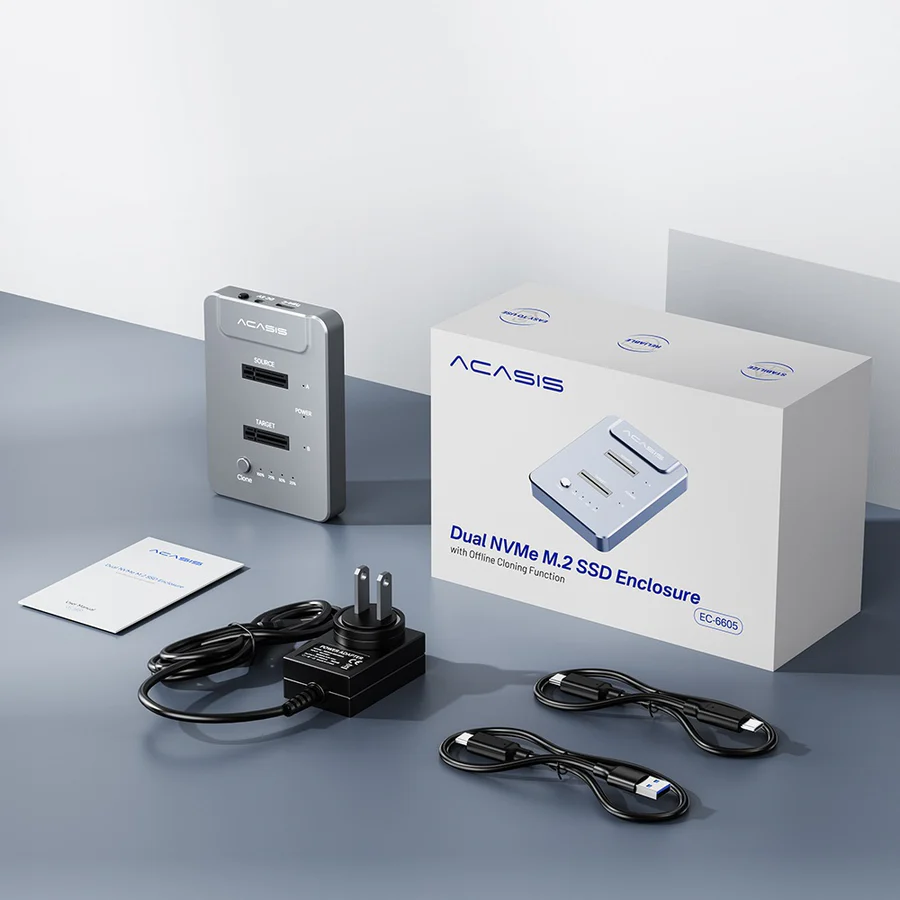
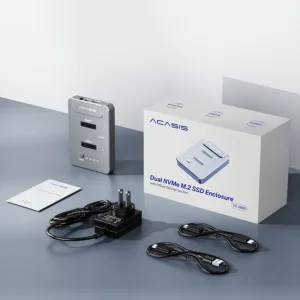
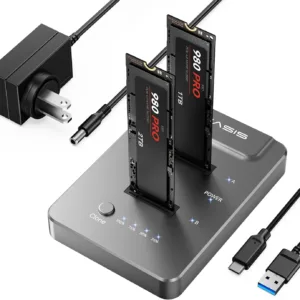 ACASIS type C USB 10Gbps to NV...
 Products
-
 Original price was: ₹14,999.00.₹4,999.00Current price is: ₹4,999.00.
 -
Original price was: ₹69,999.00.₹24,999.00Current price is: ₹24,999.00.
-
Original price was: ₹59,999.00.₹28,999.00Current price is: ₹28,999.00.
-
Original price was: ₹29,999.00.₹14,999.00Current price is: ₹14,999.00.
-
Original price was: ₹49,999.00.₹26,290.00Current price is: ₹26,290.00.
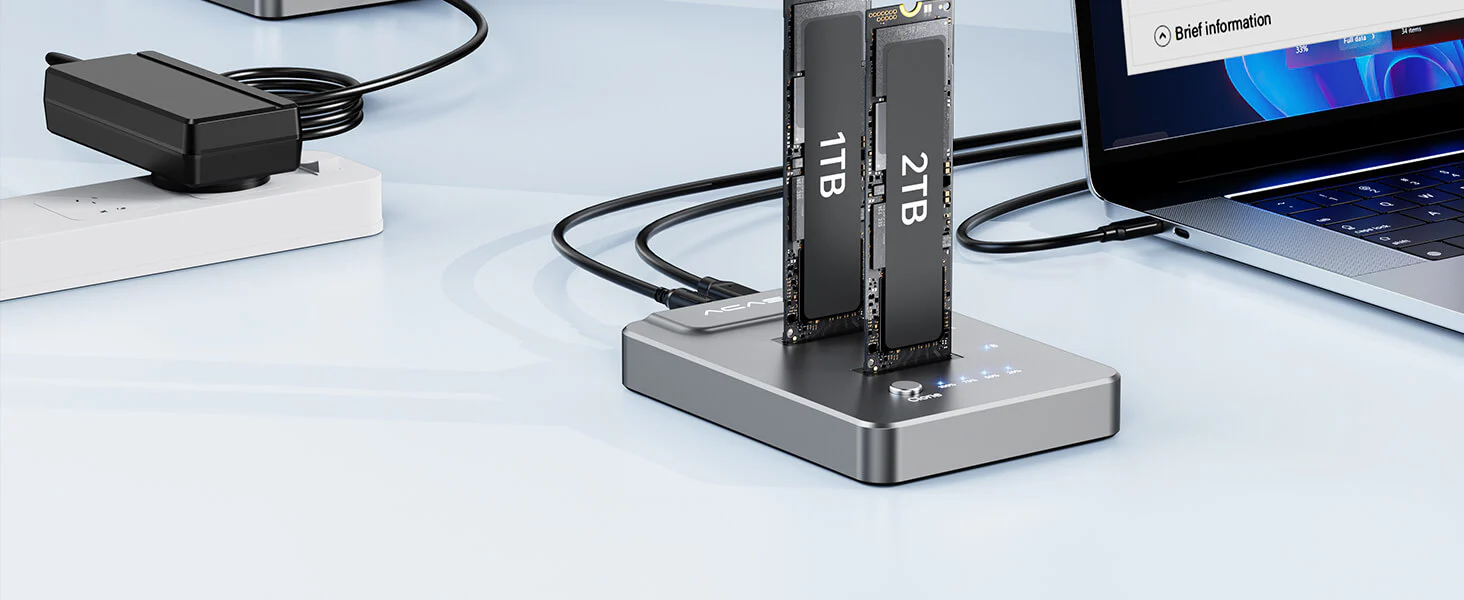
Warm Tips
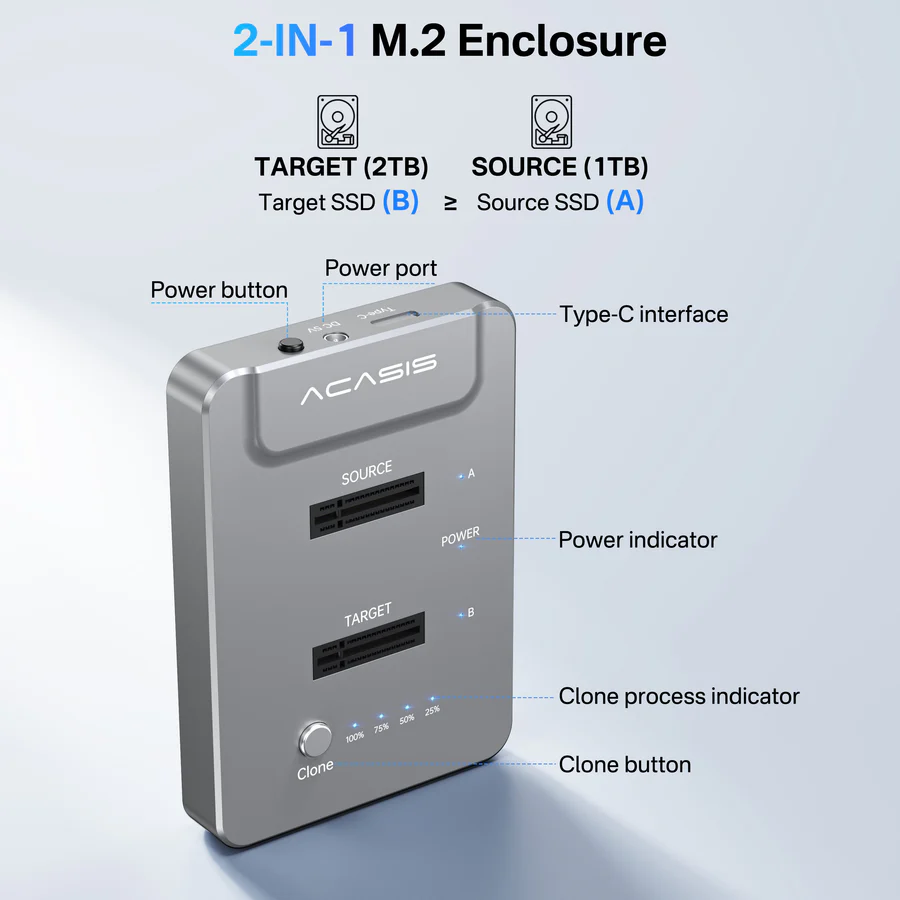
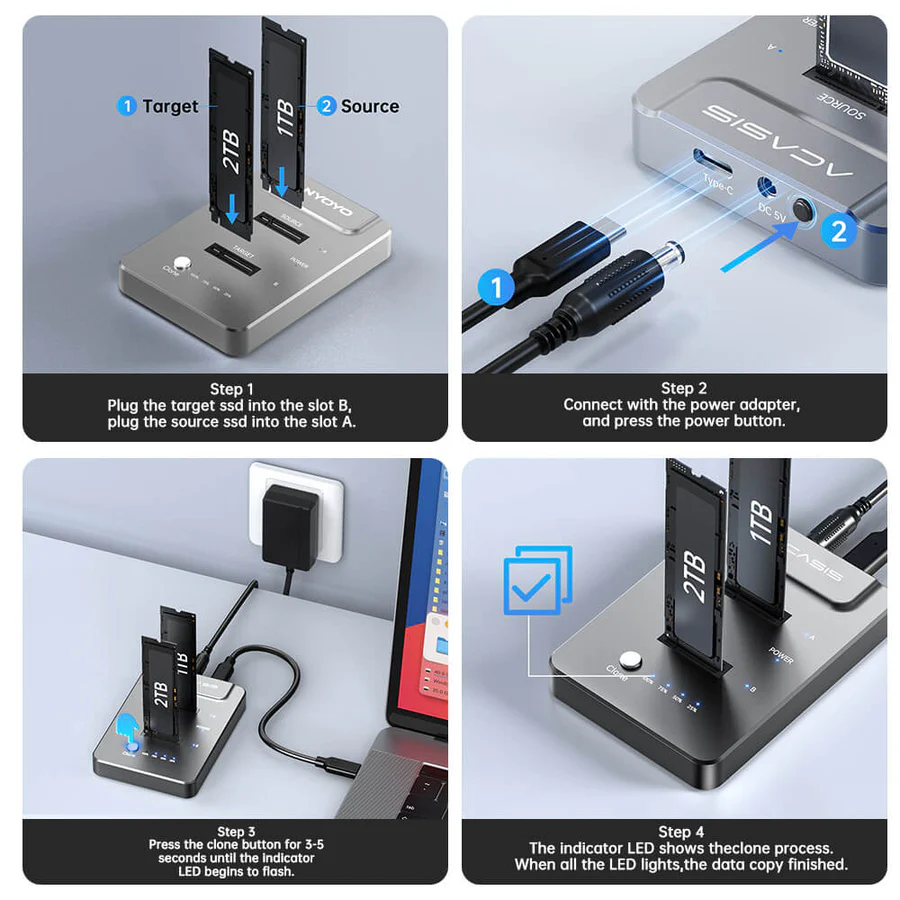
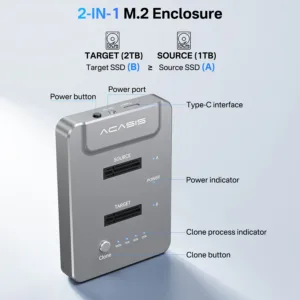
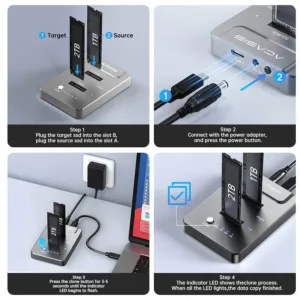
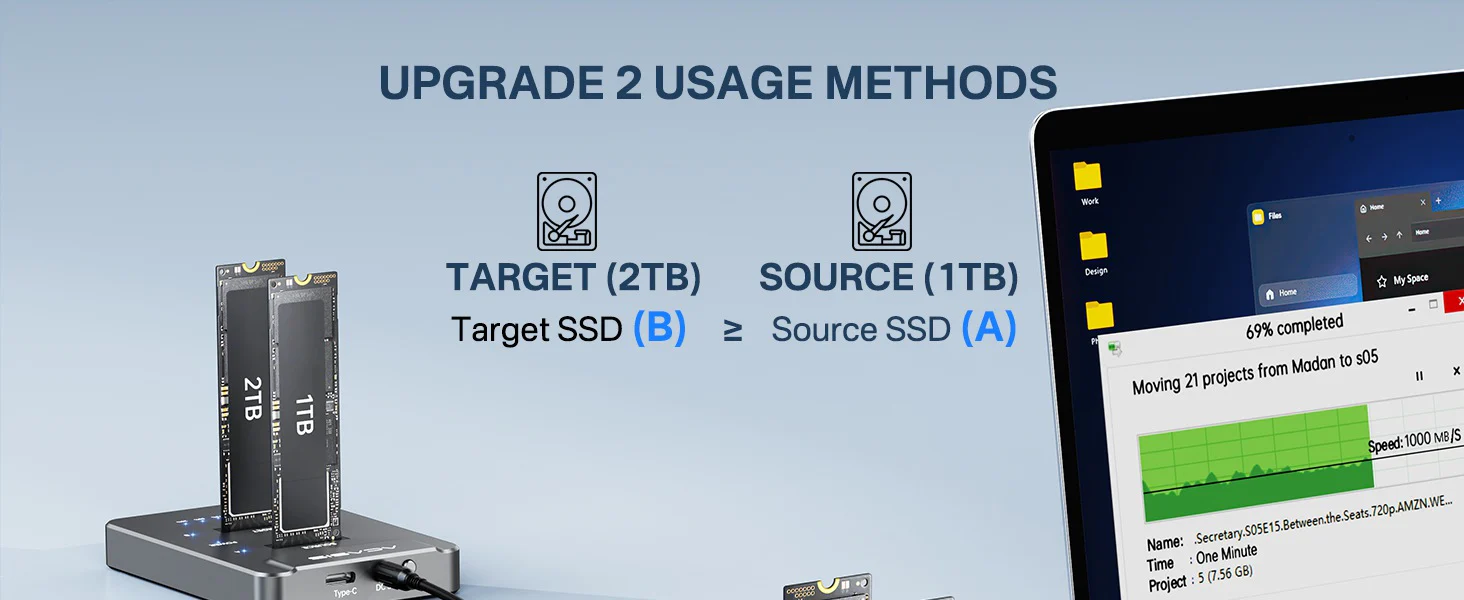
● TARGET(B) SSD ≥ SOURCE(A) SSD.
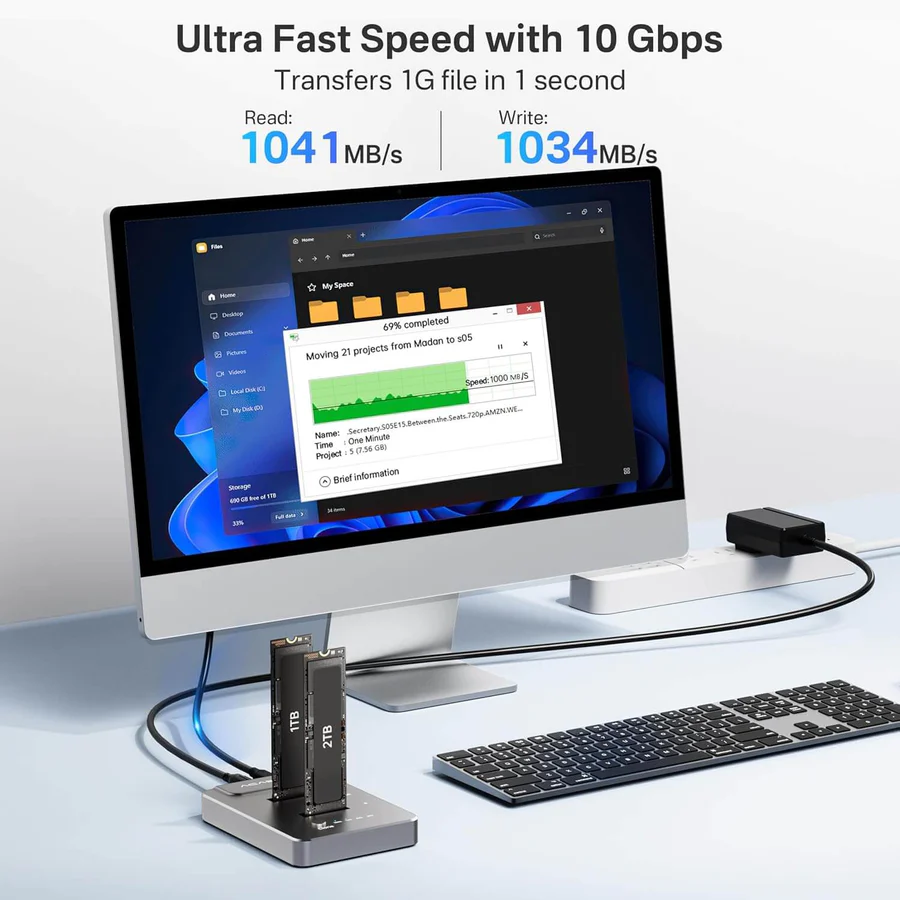
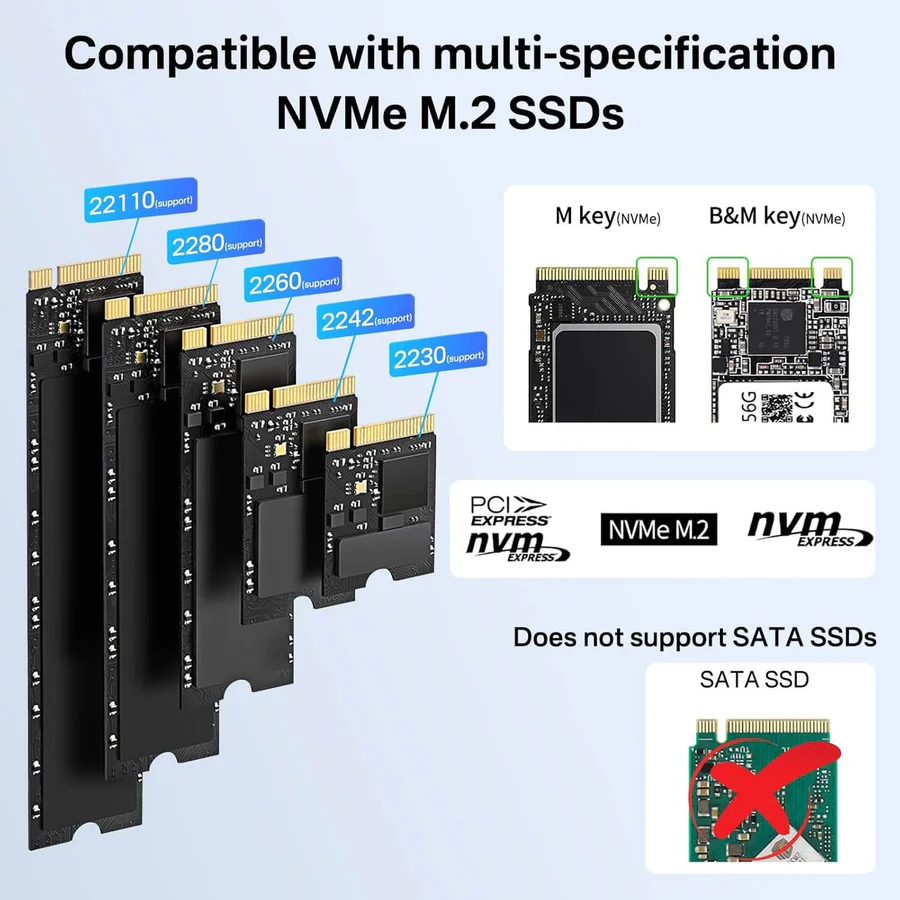
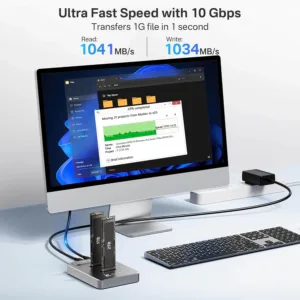
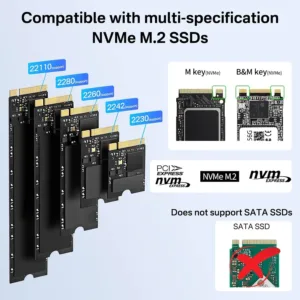
● Insert and remove your SSD carefully only when the power is off.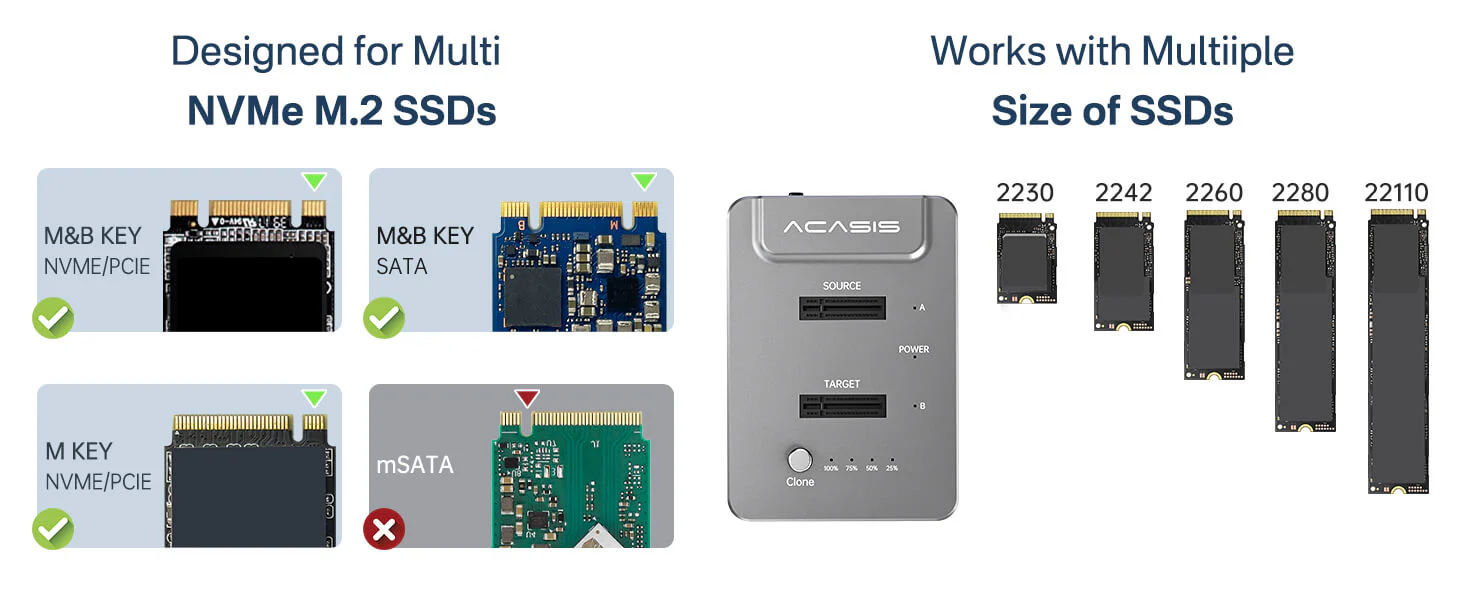 10Gbps super speed data transfer, with 992 Mb/s write/read speeds for most M2.NVME SSDs. Support two M.2 NVMe ssd for size 2230/2242/2260/2280. Provide two USB cables:USB C to C and USB C to A cables.
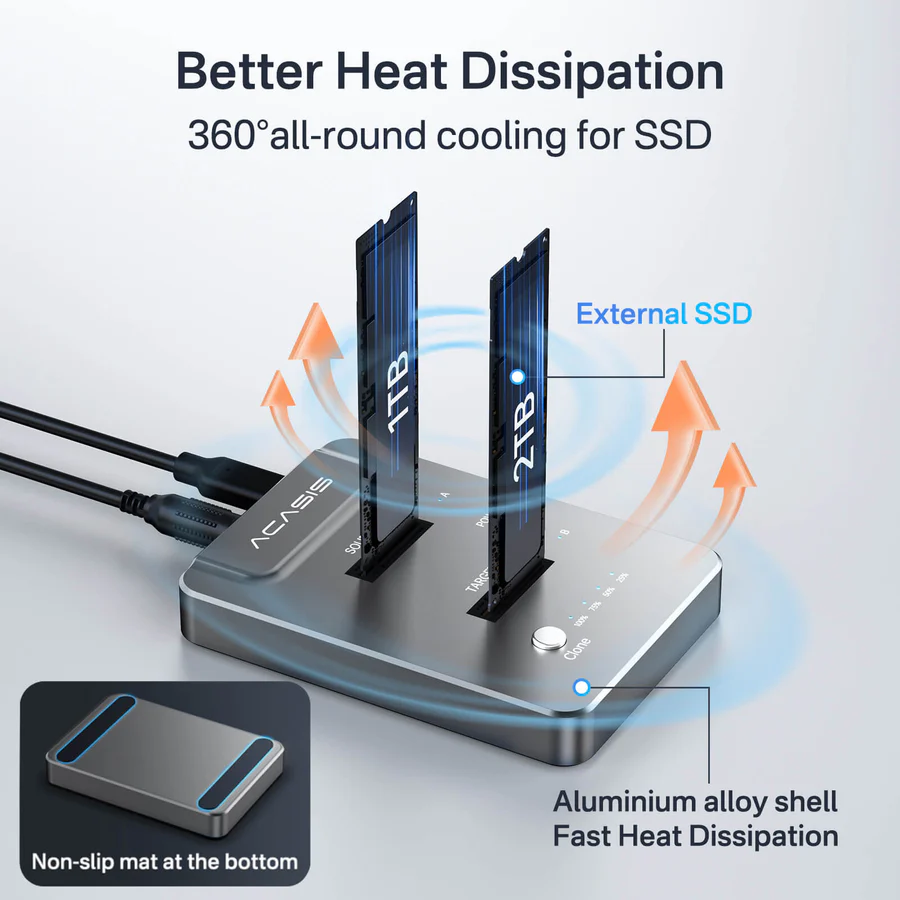
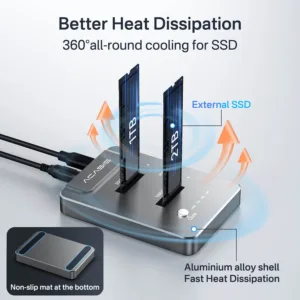
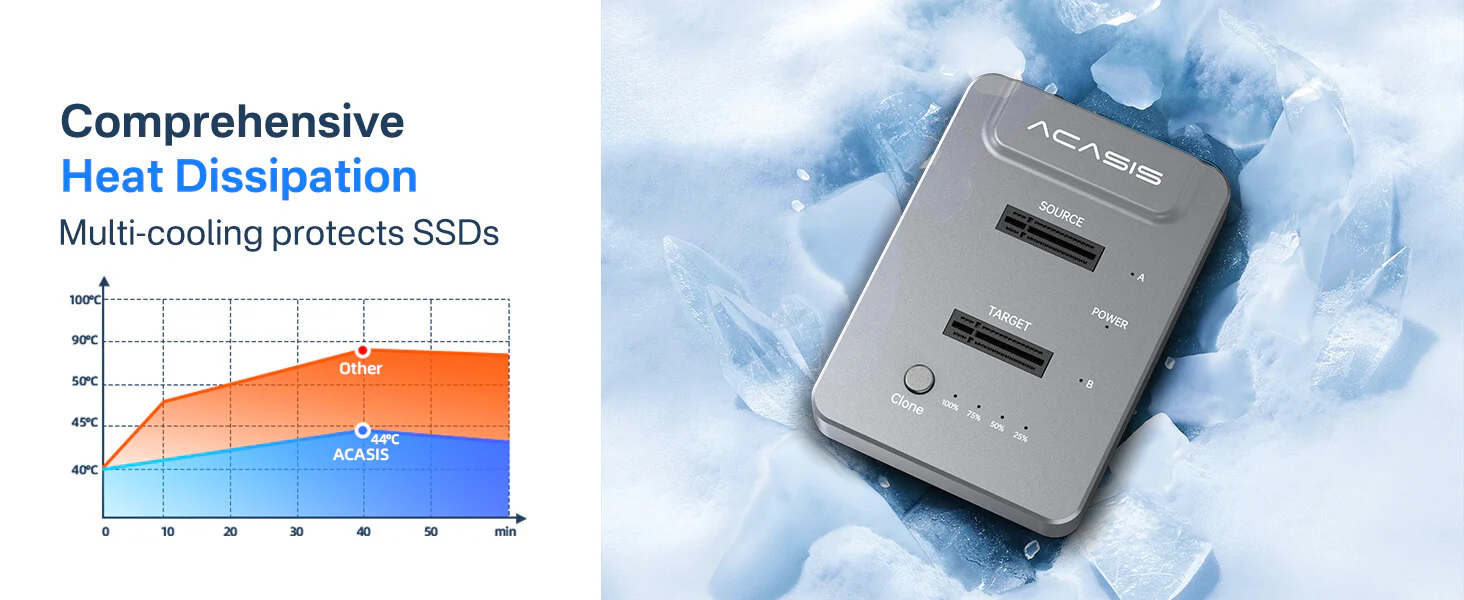 ACASIS NVMe M.2 duplicator features an aluminum enclosure for efficient heat dissipation. The 360° all-around cooling for SSDs prevents heat buildup. Safeguarding the security of your hard drive.
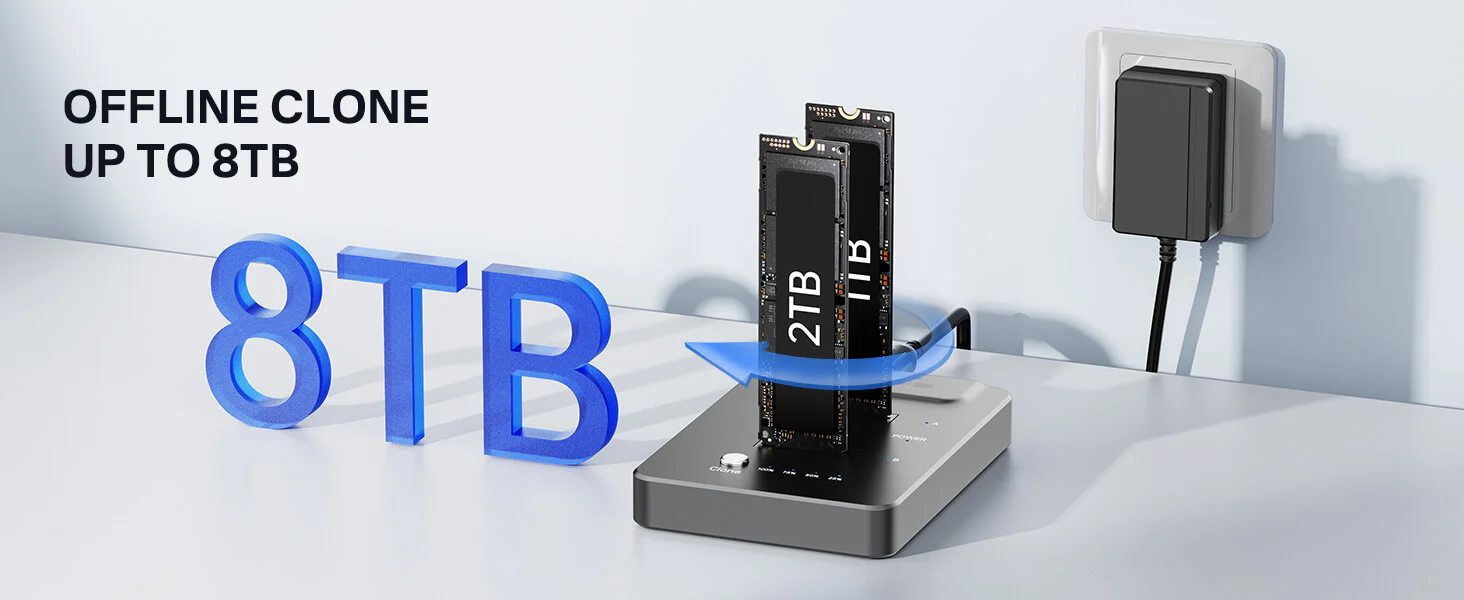 Each disk supports up to 8TB SSD, offering you more flexibility. Even if you need to upgrade your SSD in the future as your storage needs grow, you won’t need to replace the storage device.
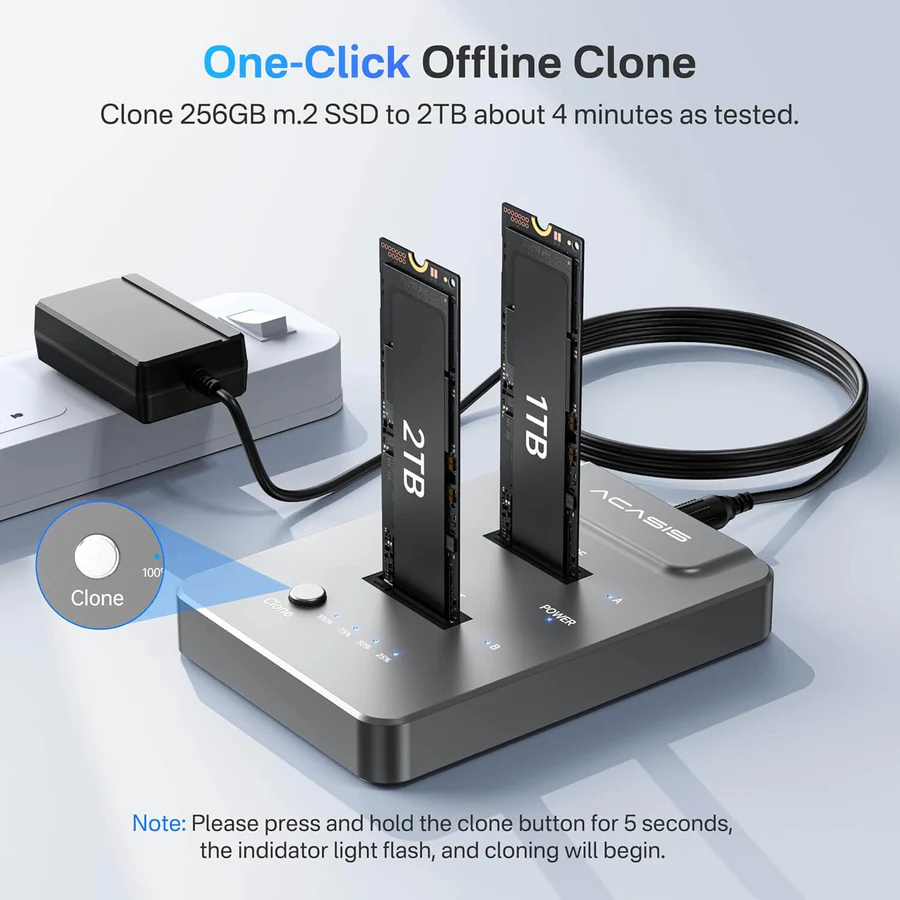
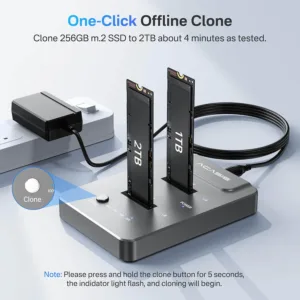
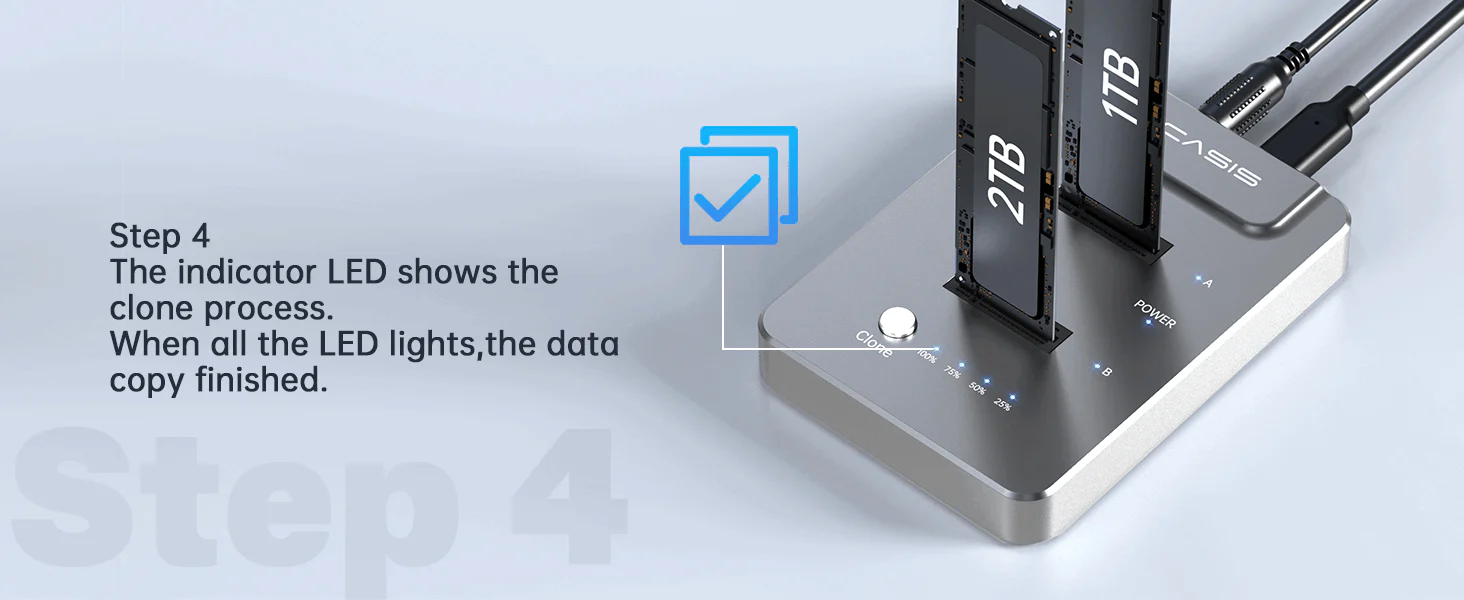
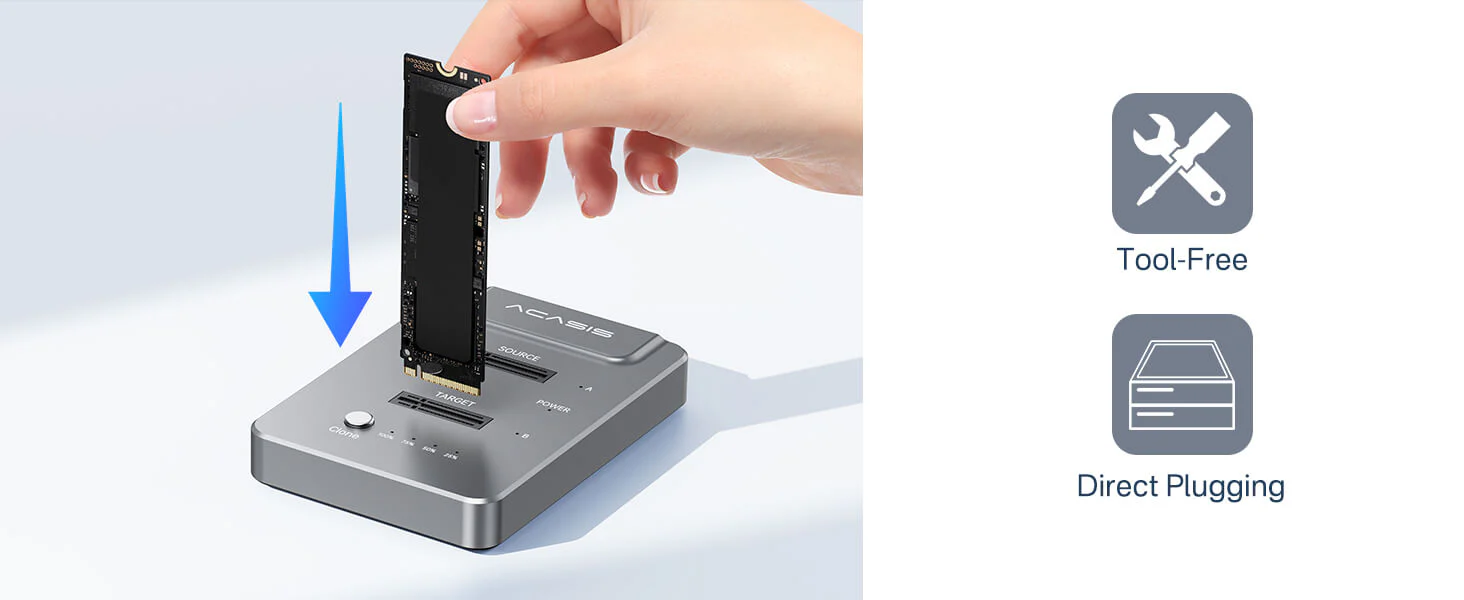 One Key Achieve Offline Clone and Duplicator. Just press and hold the Offline Clone button for 3 seconds, All various files, formats can be easily Offline Cloning and Duplicator in a few minutes by ACASIS dual-bay m.2 duplicator without connect computer. When the display reaches 100%,the file cloning is completed.
How to start Offline Clone Function?
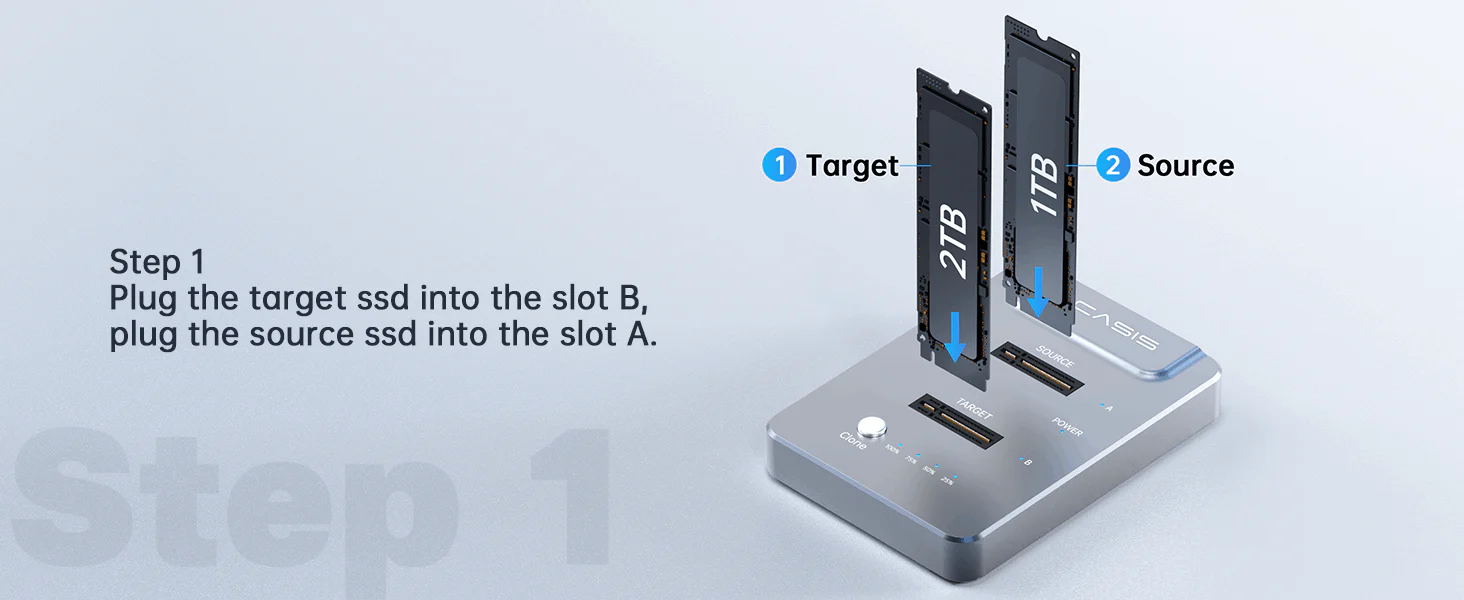
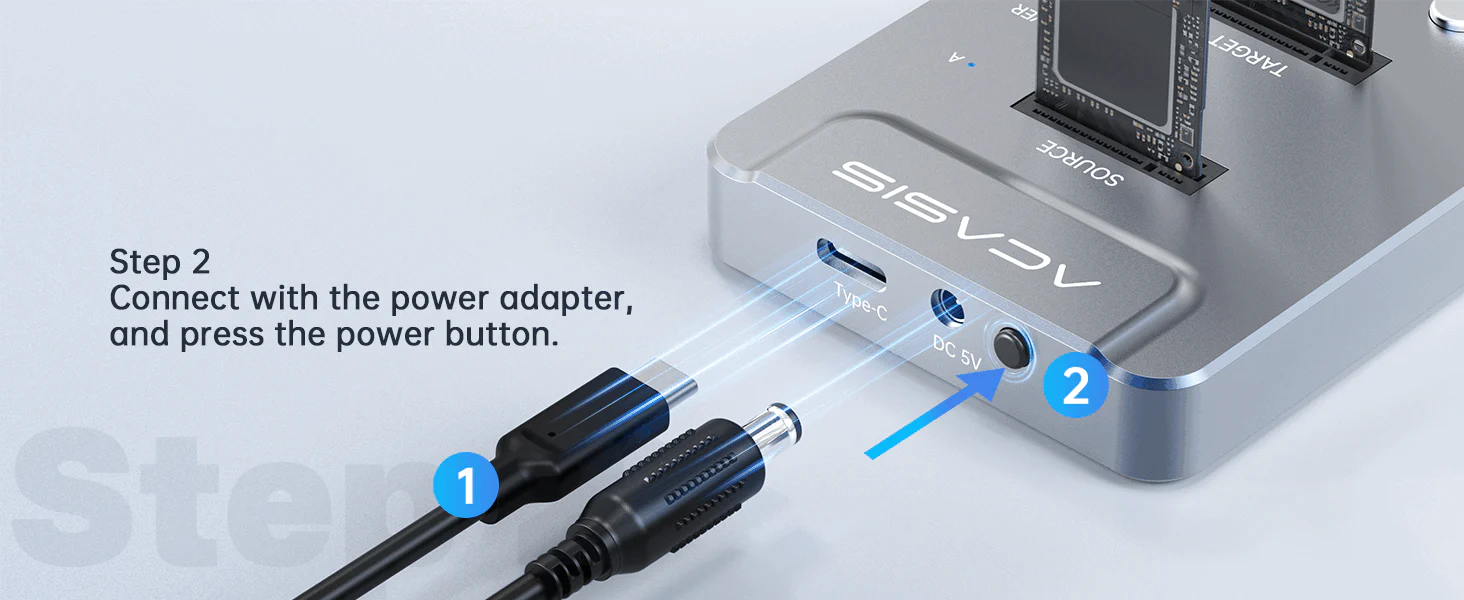
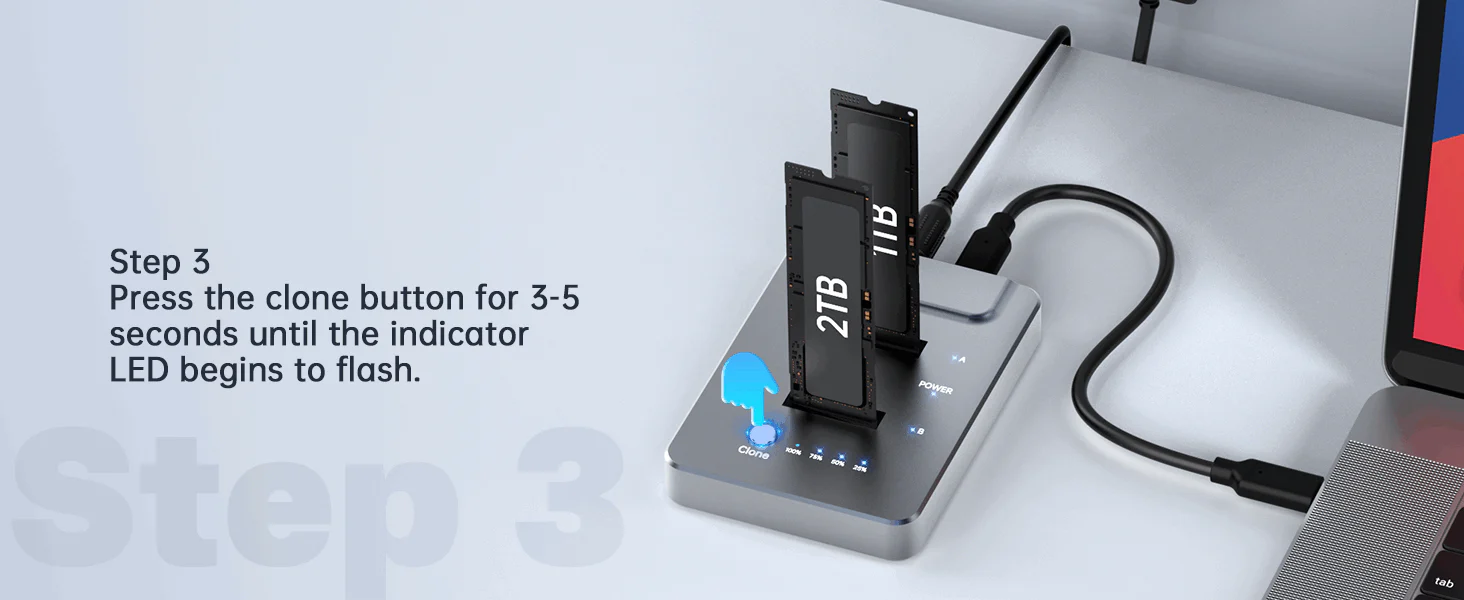
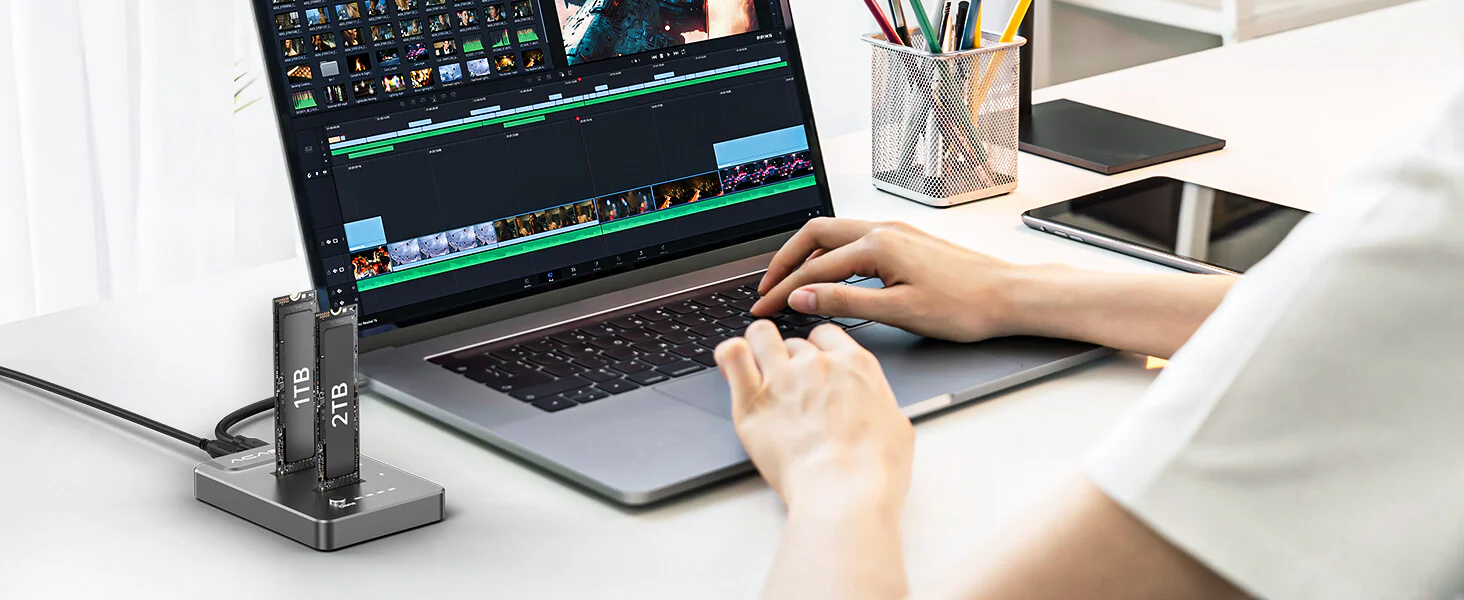
For Laptop
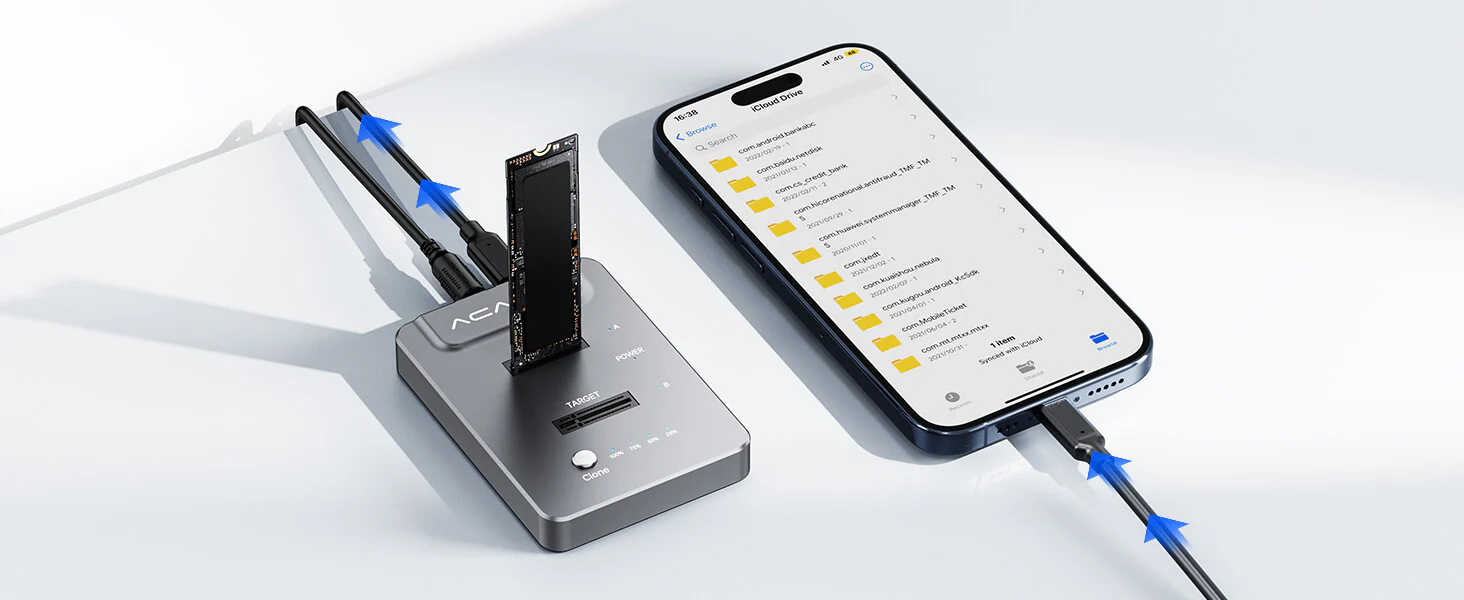
For Phone
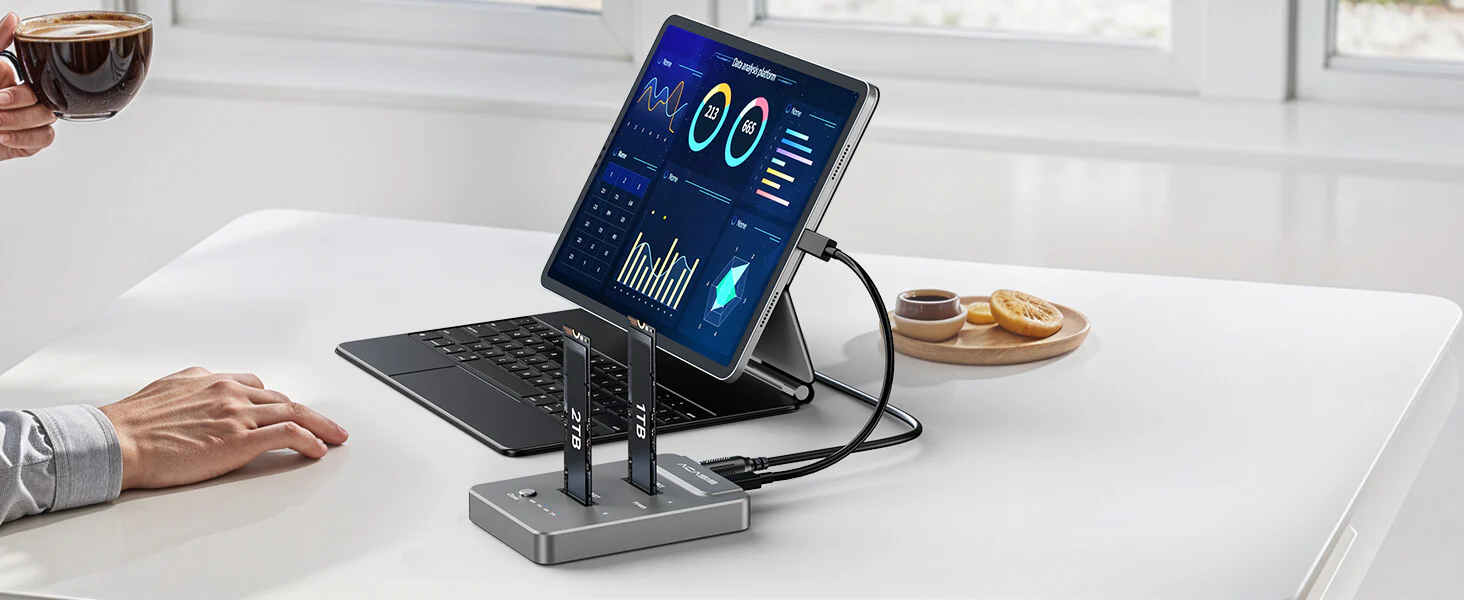
For iPad
21 reviews for ACASIS type C USB 10Gbps to NVME Clone Dual-Bay External Duplicator for M.2 SSD 2230/2242/ 2260/2280,Supports up to 8TB with Offline Clone Auto Sleep
Related products
Sale
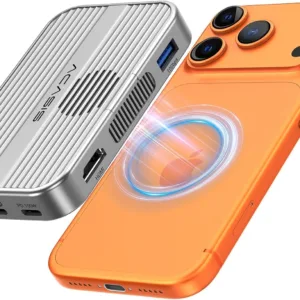
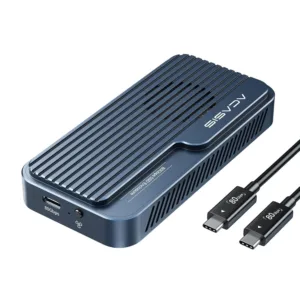
ACASIS 80Gbps M.2 NVMe SSD Enclosure with Intel Certified JHL9480 Chipset, in-Built Cooling Fan for MacBook/Mac Mini M4 Pro, Razer Blade18, Up to 8TB
Original price was: ₹69,999.00.₹24,999.00Current price is: ₹24,999.00. Add to cartSale
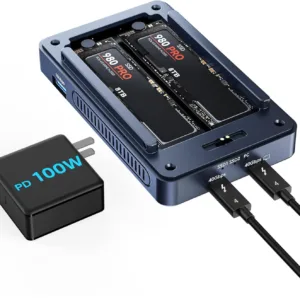
ACASIS Dual-Bay 40Gbps M.2 SSD Enclosure, Cooling Fan, Mac Mini Dock Dual Monitor, Dual nvme Enclosure Support Software RAID, for M1/M2/Windows
Original price was: ₹34,999.00.₹18,999.00Current price is: ₹18,999.00. Add to cartSale
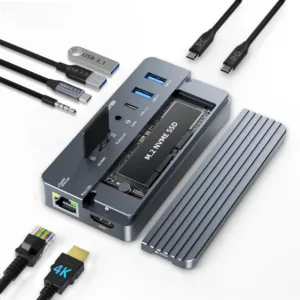
ACASIS Swappable 10Gbps High-Speed SSD Storage & 10-In-1 Hub Docking Station with PD 100W/SD/TF Card/1000Mbps LAN/3.5mm Audio, Support upto 8TB
Original price was: ₹24,999.00.₹8,999.00Current price is: ₹8,999.00. Add to cartSale
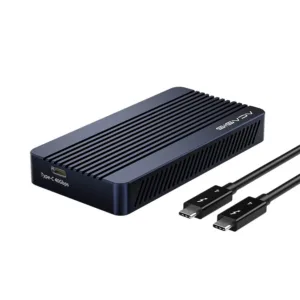
ACASIS 40Gbps M.2 NVMe SSD Enclosure Compatible with Thunderbolt 3/4/USB4/3.2/3.1/3.0 /2.0, Support Size 2280 B+M M-Key,TBU405M1 for M1/M2Pro/Max
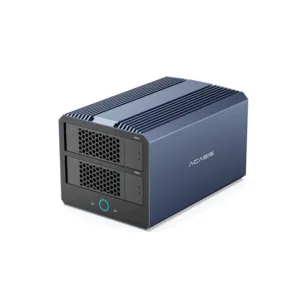
Original price was: ₹19,999.00.₹8,999.00Current price is: ₹8,999.00. Add to cartSale

Tanishq Arora –
Looks simple but performance is excellent.
Ayesha Mirza –
Small size but delivers big performance.
Dev Patel –
Large files transfer in seconds.
Fatima Noor –
Helps manage large project files efficiently.
Meher D’Souza –
Earlier I struggled with SSD upgrades. Now it’s just plug, press, and done. Feels like a professional setup.
Ritesh Mahajan –
Using it daily for cloning and backups. No issues at all.
Sana Dutta –
Now I can backup my SSD without worrying about data loss.
Imran Khan –
Handling client data is easier now. Cloning drives quickly saves me hours.
Harleen Kaur –
Works smoothly with all my NVMe drives.
Gaurav Luthra –
Email:
Title: Best NVMe Dock for Data Recovery
Review:
Recovered data from old SSD easily.
Aryan Malhotra –
The offline cloning feature is a lifesaver. I cloned my entire SSD without even connecting to a PC. Super fast and reliable.
Mohit Suri –
Affordable and powerful. Perfect combination.
Priyansh Jain –
Makes upgrading storage extremely easy.
Pooja Nanda –
Perfect for managing multiple SSDs.
Rachit Mehra –
Highly recommended for professionals.
Zoya Shaikh –
No drivers needed. Super easy setup.
Karan Oberoi –
If you handle multiple SSDs, this is a must-have tool.
Kavish Batra –
The 10Gbps speed is noticeable. File transfers are super quick.
Piyali Ghosh –
Gets a bit warm during long usage, but performance stays stable.
Abhinav Sethi –
Took me some time to understand the cloning process, but once done, it works flawlessly.
Riya Khandelwal –
Upgraded my SSD in minutes. This NVMe cloning dock makes everything so simple.